Loading…
Front desk 40 sec
 45 sec
 43 sec
Front desk
What each result means.
Green, amber and red: what to do after each scan.
Step by step
- 1
Check a member in
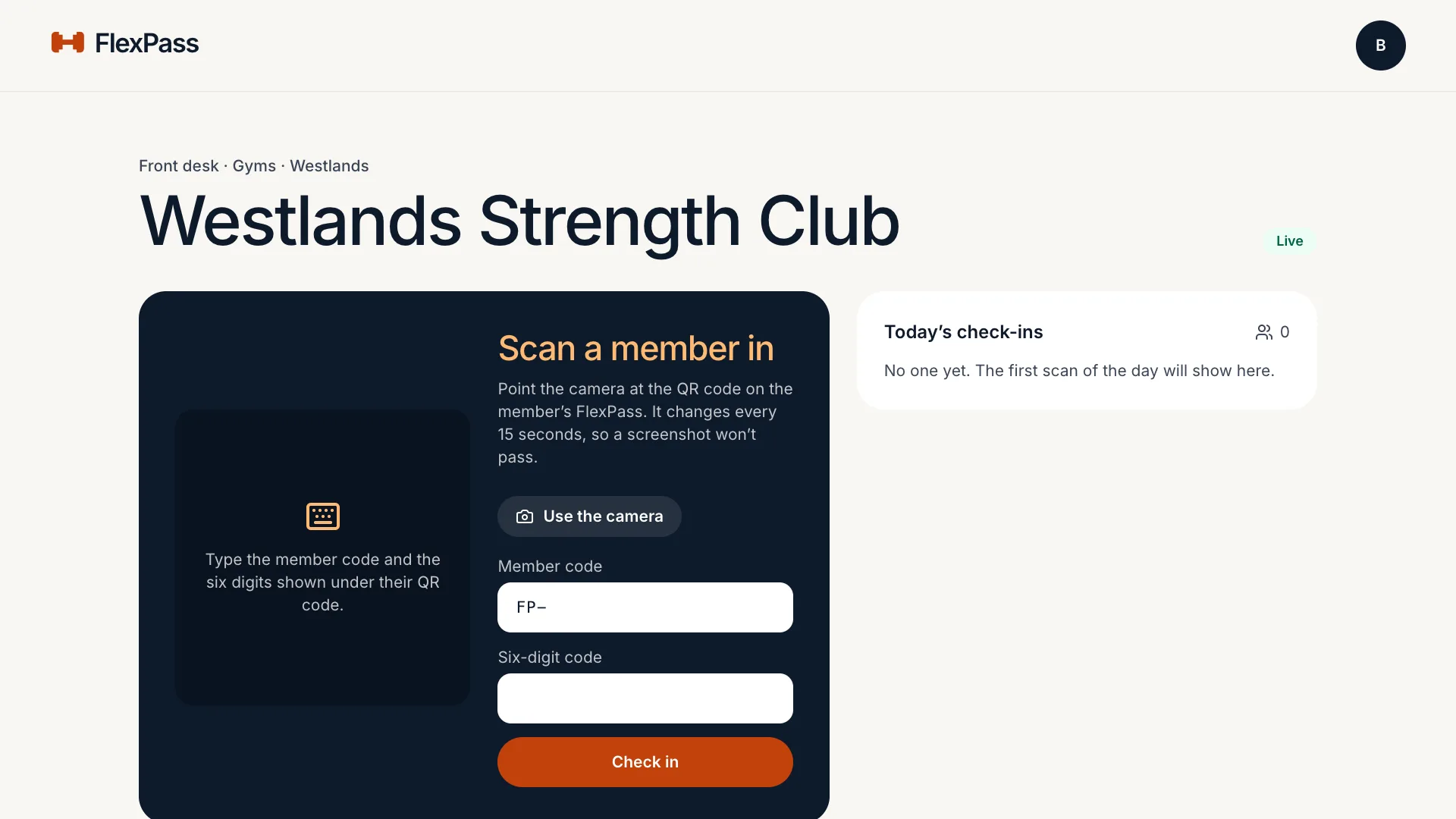
Scan the member’s pass, or type their codes. The square turns green, amber or red. The results are the same either way; this guide types the codes.
- 2
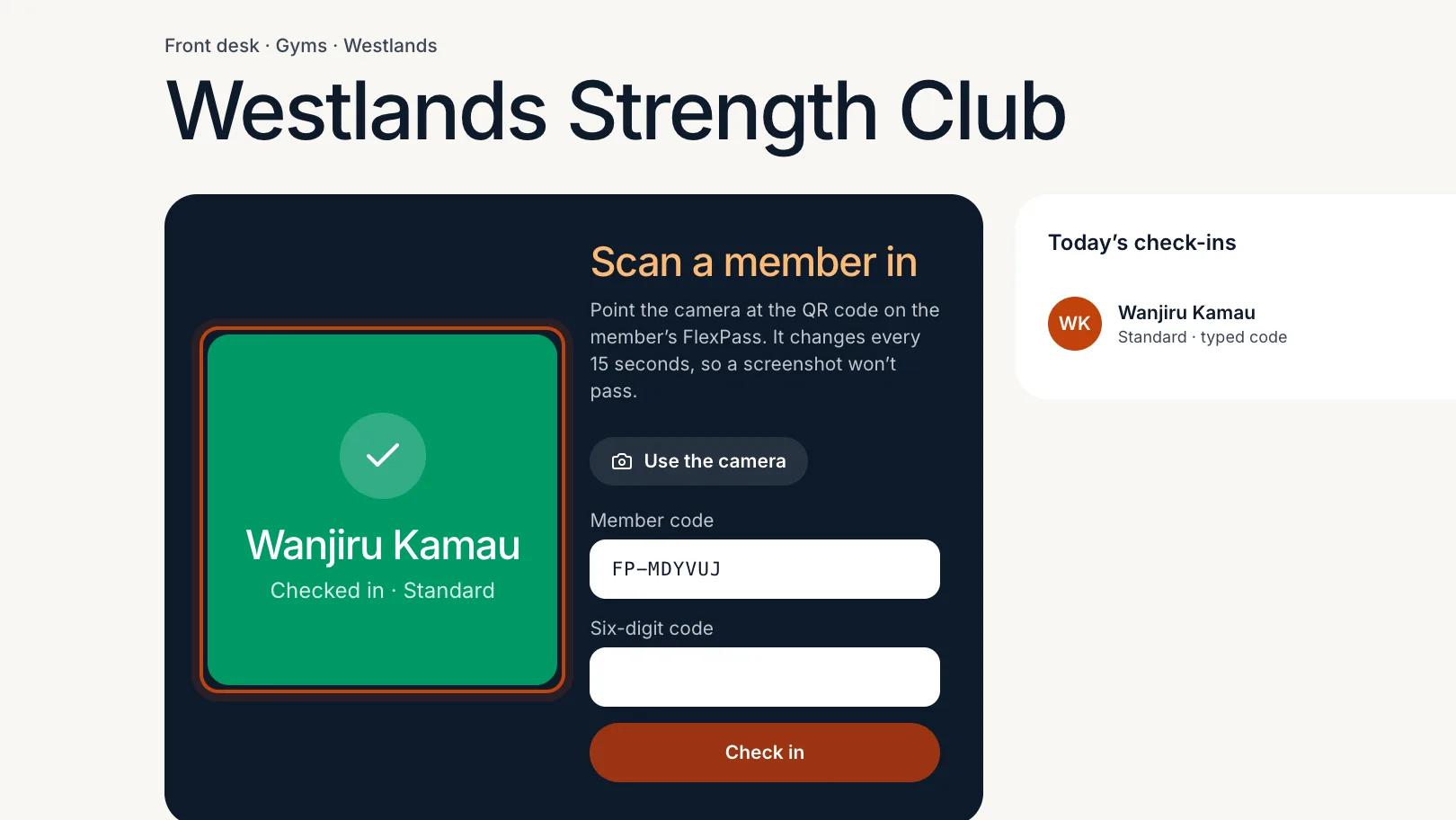
Green: checked in
Green with the member’s name means the visit counted. Let them in.
- 3
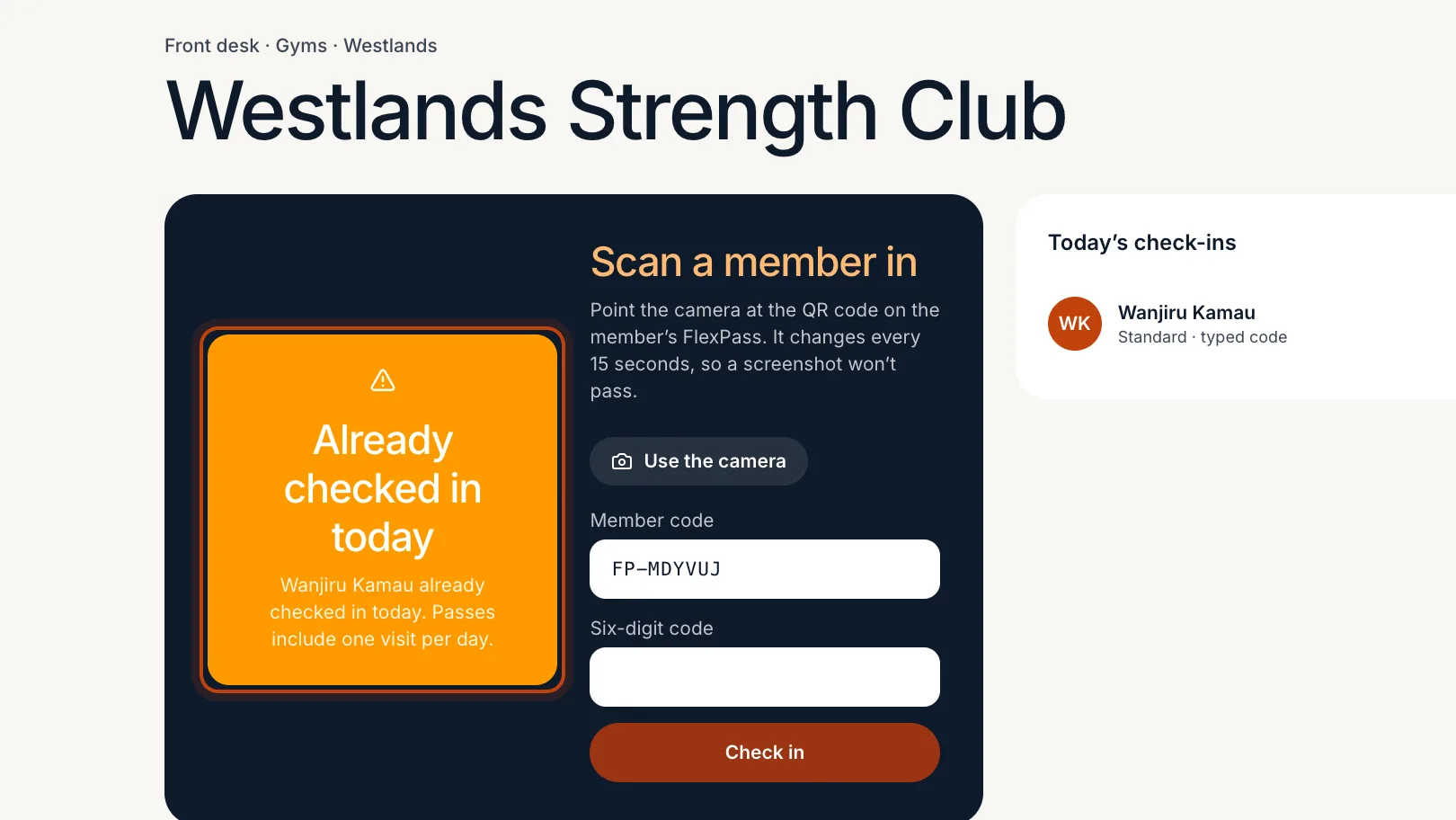
Amber: already checked in today
Amber is a warning. “Already checked in today”: each member gets one visit a day across all FlexPass venues, so this one doesn’t count again. “Premium visits used up”: the member has had this month’s premium visits. Explain, and follow your venue’s usual rules for walk-ins.
- 4
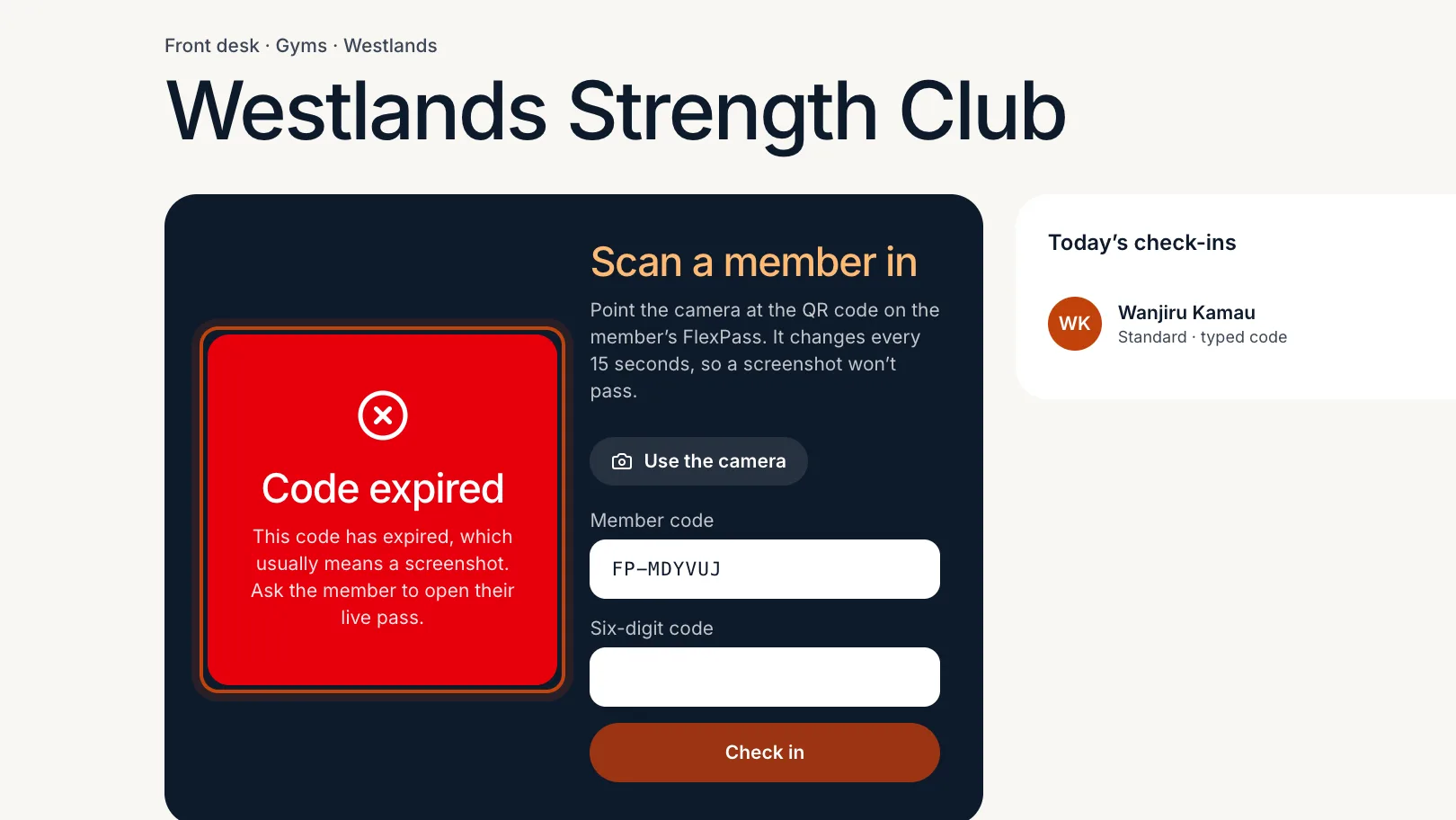
Red: the pass didn’t work
Red means no check-in. “Code expired”: the code is old, often a screenshot; ask the member to open the live pass and scan again. “Pass not active”: their company has ended their FlexPass. “Not a FlexPass code”: it’s a different QR code. “Pass locked”: too many wrong codes; the member waits 15 minutes or calls FlexPass.
Updated 22 November 2026. Screens may differ slightly from what you see.
More for front desk
40 secScan a member in
Point the camera at the member’s pass. Green means they’re in.
45 secType a code when the camera can’t read it
A cracked screen or a dim light? Type the member code and the six digits instead.
43 secKeep scanning without internet
No connection? Keep checking members in. Scans are saved and sent when it’s back.